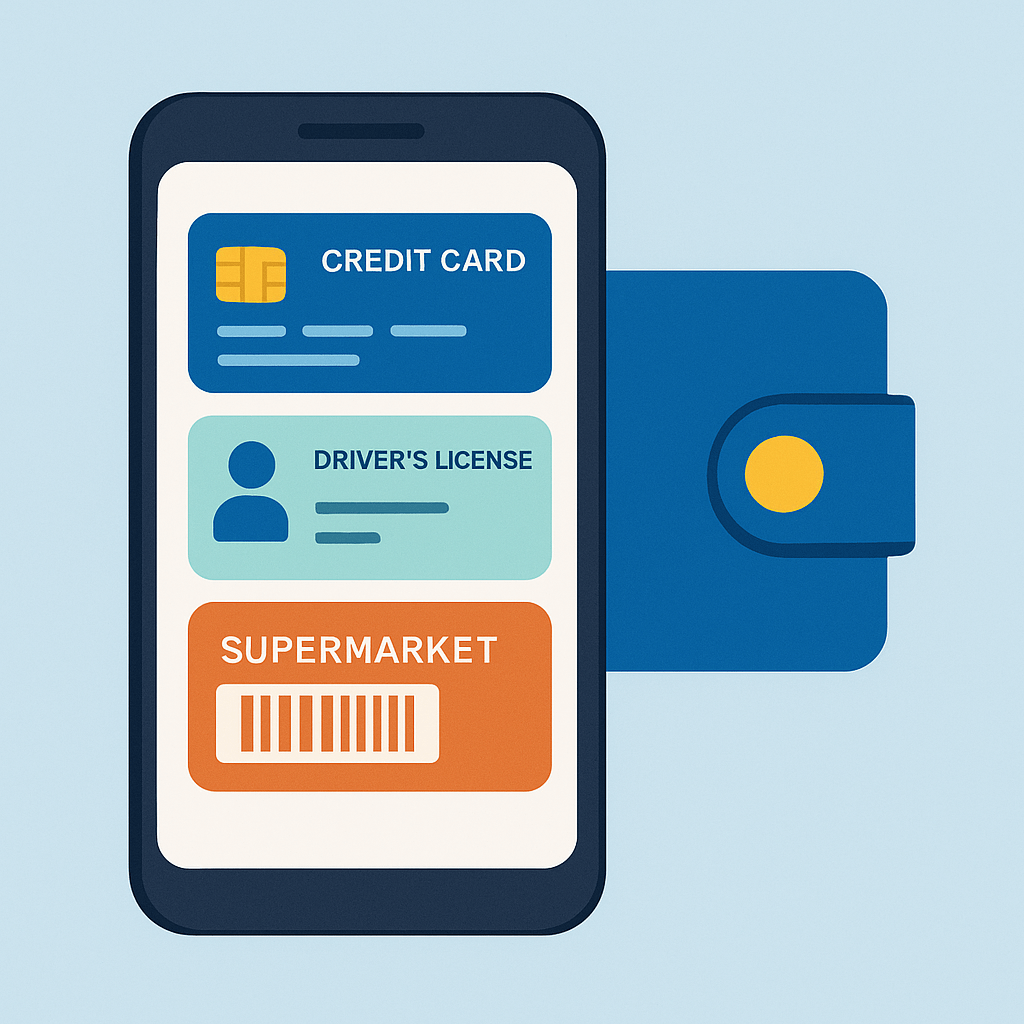
Mobile Wallet Basics: Put Your Credit Cards, Driver's License and Loyalty Cards on Your Phone and Get Around the U.S. With Just One Device
In the U.S., carrying a big stack of cards every time you go out is not only a hassle, it also raises the risk of losing them. With contactless payments like Apple Pay and Google Pay now widespread, adding your credit cards, driver's license and loyalty cards to your phone's wallet (Wallet App) has become part of everyday life. For newcomers, learning to use a digital wallet is both convenient and safer.
📌 Add a credit or debit card
Open the iPhone Wallet App (on Android, use Google Wallet).
Tap "Add Card," choose "Credit or Debit Card," then tap "Continue."
Hold the physical card near your phone to scan it, or type in the card number and expiration date.
Complete any extra verification your bank asks for (text message, app code, etc.).
Once it's done, you can use Apple Pay / Google Pay to pay contactless at supermarkets, restaurants and on public transit.
👉 Tip: most U.S. supermarkets, convenience stores and gas stations accept mobile payments, so it's great for everyday use.
📌 Add a digital driver's license or state ID
Some states now support digital driver's licenses (Mobile Driver’s License, mDL), which you can add straight to Apple Wallet:
In the Wallet app, choose "Add Card" > "Driver's License or ID Card."
Choose your state and follow the instructions to scan the front and back of your license.
You'll be asked to take a selfie and complete a head-movement check.
After the state approves it, your license is saved in your phone's wallet.
✅ States currently supported: Arizona, Maryland, Colorado, Georgia, Ohio, Hawaii, California, Iowa, New Mexico, Puerto Rico and Montana, with more states joining. ⚠️ Note: you need an iPhone 8 or later running iOS 16.5 or later.
👉 Tip: digital licenses are convenient, but you should still carry your physical license, because not every situation fully accepts digital ID (for example some law enforcement agencies or rental car companies).
📌 Add loyalty cards or supermarket cards
Most major U.S. retailers and supermarkets now support digital loyalty cards.
Option 1: tap the Add to Apple Wallet / Google Wallet button the store provides (usually in an email, a QR code or its official app).
Option 2: download the supermarket's or store's own app, log in, and it will create a digital loyalty card you can add to your phone's wallet.
To use it, just open the Wallet app and show the barcode or QR code to be scanned.
👉 These digital loyalty cards are also protected by Face ID / Touch ID, so they're secure and better for the environment.
📌 Bottom Line: Your phone is your new wallet
With a mobile wallet, you get:
Fast payments: paying takes one step, no need to pull out your wallet.
Safety and convenience: if you lose your phone, you can lock it remotely to prevent misuse.
ID in one place: more states will fully support digital licenses, so your phone can prove who you are.
Less to carry: credit cards and loyalty cards, all on one device.
👉 After you finish these setups, be sure to turn on two-factor authentication and backups to keep your digital assets and identity safer.
I'm C. I'm from Taiwan and now run a business in Los Angeles. When I first arrived, the challenges were everywhere! From the language barrier to culture shock, every small detail took me a long time to figure out. Those experiences taught me how to adapt quickly here, until I was in my element. I've put years of that experience on this site to help newcomers like me settle into life in the U.S. more easily and quickly. Whether it's moving here, finding a job or handling everyday tasks, you'll find plenty of practical shortcuts and solutions so you can skip the detours. I hope what I share helps you start your new life in America smoothly, with less effort and a lot more fun!